










For years, I relied on Windows’ built-in uninstall feature without giving it much thought. Whenever I needed to remove a program, I would open “Apps & Features,” click uninstall, wait for the wizard to finish, and move on with my day. It felt simple enough. But over time, I started noticing something frustrating: my PC was slowly becoming cluttered, startup times were increasing, and old software traces seemed to linger even after uninstalling programs.
That experience pushed me to look for a better solution, and eventually I tried IObit Uninstaller, a dedicated uninstaller for Windows that promised cleaner removals and faster software management. I originally installed it just to test the batch uninstall feature, but after using it for several weeks, I completely stopped using Windows’ default uninstaller. Here’s what my experience was really like.
Why I Started Looking for Another Uninstaller
My breaking point came after setting up a secondary laptop for work and testing software. I had installed dozens of programs within a short period—editing tools, browsers, utilities, launchers, and trial software. When it came time to clean everything up, Windows made the process painfully slow.
The default uninstall process forced me to remove apps one at a time. Every uninstall required multiple confirmation windows, and some programs left behind folders, registry entries, or startup services. Even worse, a few stubborn apps refused to uninstall properly at all. This is actually one of the biggest complaints Windows users have had for years. The built-in uninstaller often removes only the main application while leaving behind residual files and settings.
At first, I thought this was normal. Then I started researching third-party uninstallers and discovered that many people use them specifically for leftover cleanup and bulk removal. That’s when I decided to test IObit Uninstaller.
First Impressions of IObit Uninstaller
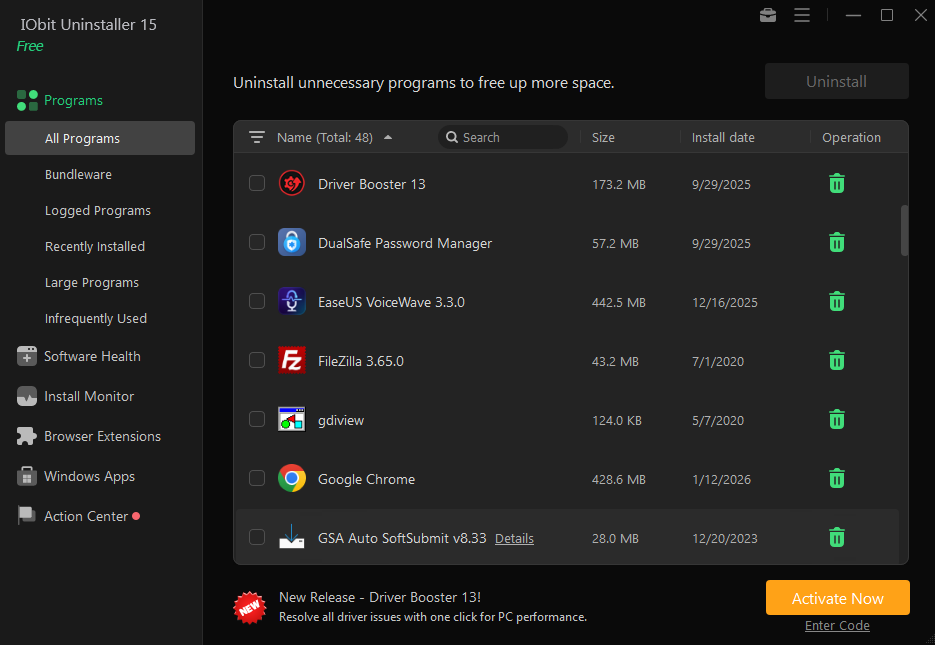
The installation itself was quick and straightforward. The interface of this uninstaller for Windows immediately looked cleaner and more organized than the Windows uninstall menu. Instead of a plain app list, I saw categories for recently installed software, large programs, browser extensions, Windows apps, and bundled software.
One thing I noticed right away was how much information the software provided. I could instantly sort programs by size, installation date, or usage frequency. That alone made it easier to identify unnecessary applications I had forgotten about.
But the feature I really wanted to test was Batch Uninstall. According to the official feature description, the batch tool allows users to select multiple applications and remove them simultaneously with a single process. That sounded exactly like what I needed.
My Experience Using the Batch Uninstall Tool
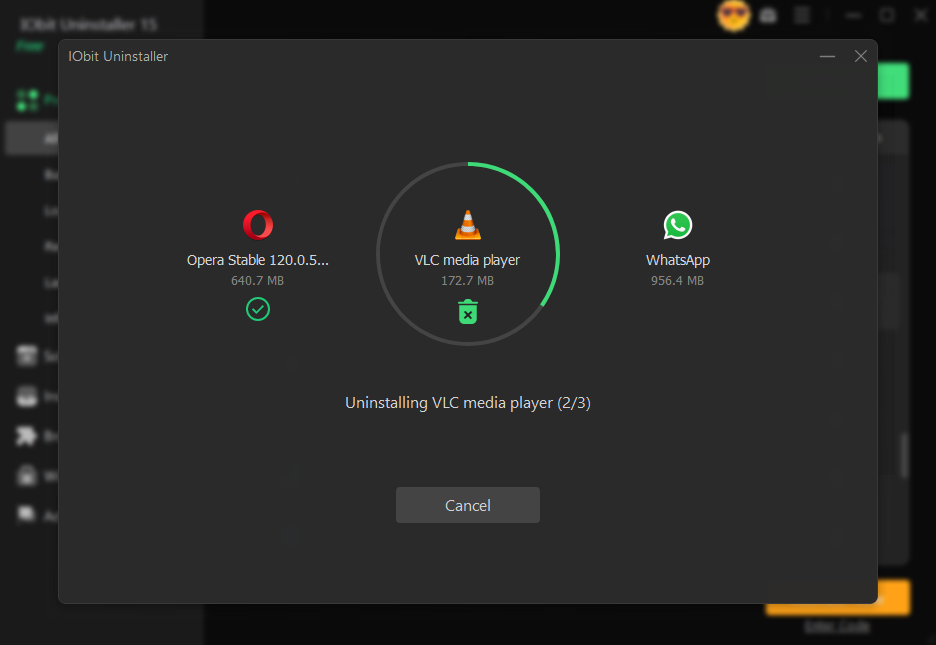
I decided to start aggressively. I selected around 15 unnecessary programs at once—old game launchers, browser toolbars, utilities I no longer used, and trial applications I had forgotten to remove months earlier.
Normally, uninstalling many apps through Windows would take forever. I would have to sit there clicking “Next”, “Confirm,” and “Finish” repeatedly for each program.
With IObit Uninstaller, the process felt dramatically faster. After selecting the software, I clicked the uninstall button once and enabled the option to automatically remove leftover files. From there, the tool handled most of the work by itself.
Some uninstallers claim to support batch removal but still interrupt you constantly with pop-ups. IObit’s process felt much smoother than I expected. It moved from one program to another without forcing me to manually relaunch the uninstall sequence every time. That alone saved me a huge amount of time.
The Leftover File Cleanup Was the Biggest Difference
This was the feature that truly changed my opinion about uninstall tools. Once the main uninstall process finished, IObit Uninstaller scanned for residual files, folders, registry entries, and hidden traces connected to the removed applications. It found leftovers for almost every program I deleted.
Some leftovers were tiny registry entries, but others included hundreds of megabytes of unused files buried inside AppData folders and temporary directories. Windows’ default uninstaller rarely catches these leftovers properly.
After cleaning everything, my storage space noticeably improved. More importantly, my system felt cleaner and less cluttered. I also appreciated that the software clearly showed what it planned to remove before deleting anything permanently. That extra transparency made the cleanup process feel safer.
Removing Stubborn Programs
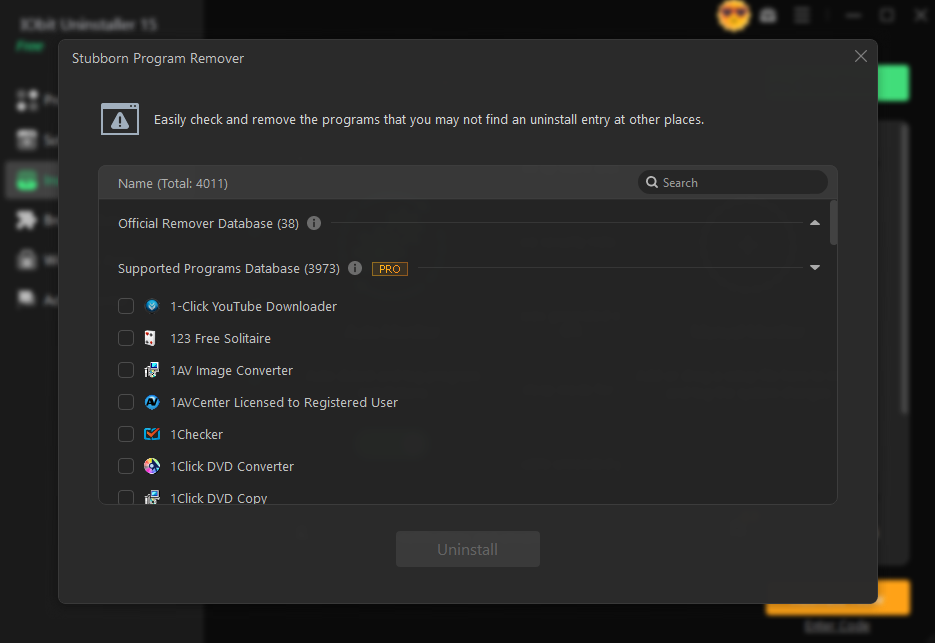
One feature I didn’t expect to use much was Force Uninstall. Eventually, I tested it on an older application that Windows simply refused to remove. Every attempt through the built-in uninstaller ended with an error message.
IObit Uninstaller handled it surprisingly well. The software scanned the installation directory, identified related registry entries, and removed the broken application manually. According to IObit, the tool is specifically designed to handle stubborn software that normal uninstall methods fail to remove. That was a major advantage over the standard Windows method.
Browser Extensions and Hidden Software
Another thing I liked was the browser cleanup section. Over time, browsers collect extensions, plugins, and notification permissions that most users completely forget about. I found several old extensions installed in Chrome that I hadn’t used in years. The software also identified bundled applications installed alongside other programs. This was especially useful because some installers quietly add extra utilities or toolbars during setup.
What I Liked Most
After using the software regularly, a few advantages stood out clearly:
1. Batch Uninstall Saves Serious Time
This became the main reason I stopped using Windows’ uninstall feature entirely. Being able to remove multiple applications at once dramatically sped up system cleanup.
2. Leftover Cleanup Actually Matters
I used to underestimate how many traces software leaves behind. After seeing the cleanup scans in action, I realized why my systems gradually became cluttered over time.
3. Better Organization
The categorization system made it easier to spot unnecessary applications, large files, and outdated software.
4. Stubborn Software Removal
The Force Uninstall option rescued me multiple times when broken uninstallers failed.
A Few Downsides I Noticed
No software is perfect, and I think it’s fair to mention a few drawbacks. The free version includes occasional upgrade prompts for the Pro edition. They weren’t unbearable, but I definitely noticed them.
I also found mixed opinions online regarding uninstallers in general. Some Reddit users argue that third-party uninstallers still leave behind residual data depending on the software being removed. In my personal experience, though, IObit still cleaned significantly more than Windows’ default uninstall process.
Final Thoughts
After using it consistently, I honestly can’t imagine going back to the default Windows uninstaller for regular software management.
The batch uninstall feature alone changed the way I clean my PC. Instead of wasting time removing apps one by one, I can now clear unnecessary software in minutes. Combined with leftover cleanup, browser extension management, and stubborn program removal, the experience feels far more complete than what Windows offers out of the box.
If you frequently install and remove programs, test software, or simply want a cleaner system, I think trying IObit Uninstaller makes a lot of sense. For me, it became more than just another utility—it replaced the default uninstaller entirely.